
Follow the mentioned steps to create an item master.
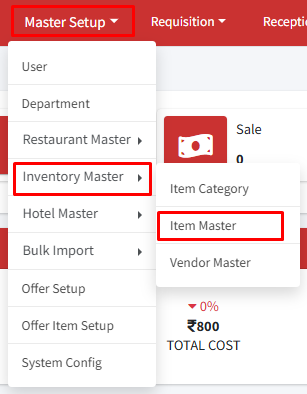
Step 1: Go to Master Setup > Inventory Master > Item Master.
Step 2: Click on ‘+Add Item Type’.
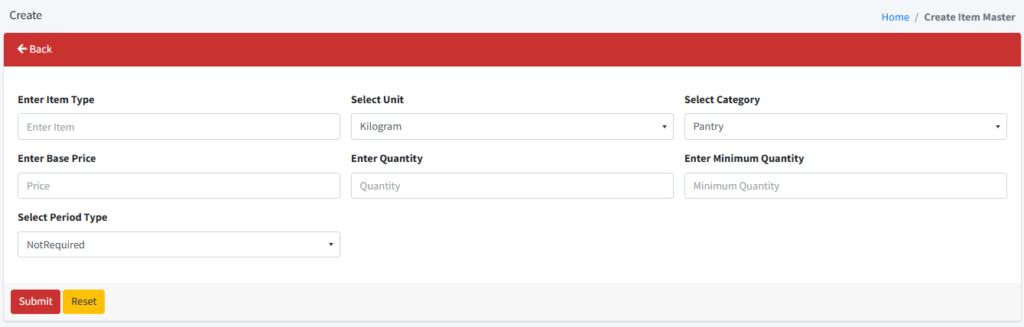
Step 3: On the create page. Enter the item name (e.g., rice, flour, oil), select the appropriate unit (e.g., kg, liters), and choose the relevant item category. Enter the base price for one unit of the item. Input the current quantity available in inventory and set a minimum quantity (when the stock of this item goes below this minimum, you’ll get a warning). Finally, select the desired purchasing period type for the item (e.g., daily, weekly, monthly, etc), the expected purchase quantity if a period type is selected, and click ‘Submit’ to save the item.
Your newly added item will now be displayed on the screen. Use the edit or delete button to modify or remove an item.
Note: An item can not be removed (deleted) if it is in use in consumption configuration.
Need help?
Have you any question which is not answered in this knowledge base? Contact us. We are here to help you.