
Table Order
Use ‘Table Order’ to manage orders for different tables at your restaurant.
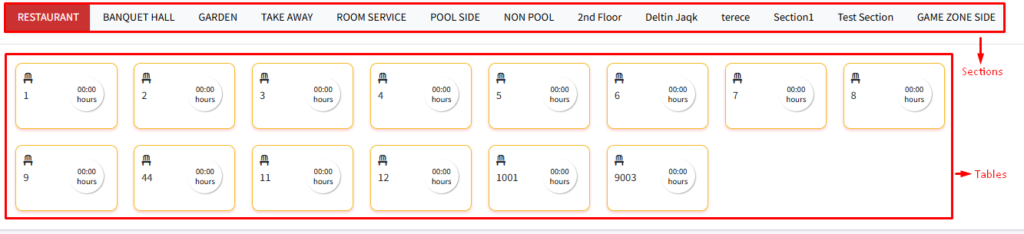
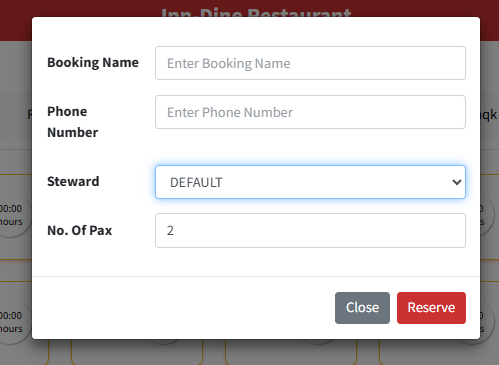
Table Booking: Click on any table from any section. A form will open for the selected table in which we need to fill in the following details:
- Booking Name: Enter customer’s name (not mandatory)
- Phone Number: Enter customer’s phone number (not mandatory)
- Steward: Select the steward’s/waiter’s name from the drop-down who will attend the customer
- No. Of Pax: Enter the number of persons on the table.
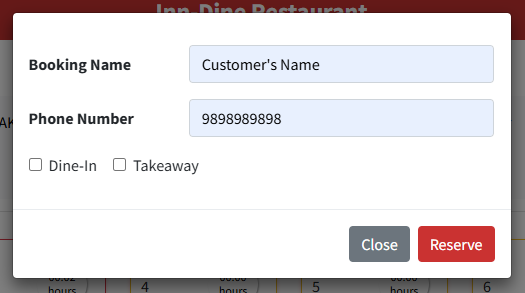
Order without table reservation (For Take-away or delivery): You can also take orders without booking a table. Click on the ‘New Order’ button on the top left side of the screen and fill in the ‘Booking Name’ & ‘Phone Number’ of the customer.
Ordering from the menu: After the ‘Table Reservation’ or ‘New Order’, you will be redirected to the order page. There are different sections on the order page which are as follows:
- Menu types, or food categories, are listed on the left side of the screen for easy navigation.
- The middle section shows all dishes within the chosen menu type. Select the items you’d like to order from here.
- The right section of the page displays your order summary, which includes a list of the menu items ordered, their current preparation status, the quantity ordered, and the price of each item.
- There is a search bar located at the top of the screen that you can use to find specific menu items easily.
To place your order, select your desired menu items from the central section and specify the quantity or unit for each item. Your selections will be displayed in the right section. When ready, print the Kitchen Order Ticket (KOT) to send the order to the kitchen.
Printing KOT (Kitchen Order Token/Ticket)  : Click ‘Print KOT’ at the bottom of the order summary to send your order to the kitchen. The KOT is a printed ticket that helps the kitchen staff prepare your food correctly. Upon KOT generation, the menu item status will be marked as ‘Preparing.’
Shift Tables  : The ‘Shift Table’ button, located next to the ‘KOT Print’ button, allows you to move customers to a different table within the restaurant. This can be within the same section or another section.
Completing Orders: Upon order completion, clicking ‘Complete All’ triggers a pop-up. This window allows you to:
- Determine GST applicability to the table order.
- Set a discount percentage.
- Apply eligible offers if any are available.
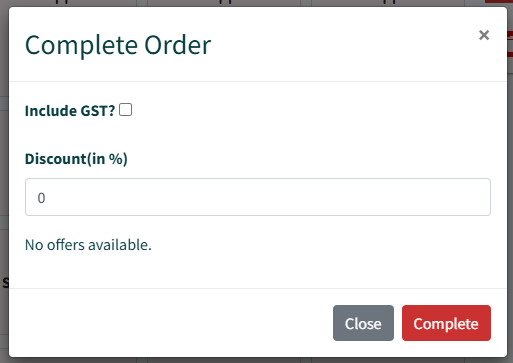
After these selections are made, click the submit and you’ll be seamlessly redirected to the payment page.
Payment: The ‘Payment Collect’ page provides a summary of the order on the left, including GST, discounts, and the total bill amount. Print a receipt for the customer by clicking ‘Print‘. To go back to the table view, use the ‘Back To Table‘ button.
On the right side, you’ll find different ways for customers to pay, such as cash, card, or online. They can even use a mix of these options. Enter the amount paid for each method and click ‘Submit’ to complete the transaction.
Settle Bill On Room: If a hotel guest chooses to dine in the restaurant instead of ordering room service, you can select the ‘Settle to Room’ option during payment to add the bill amount to their existing hotel account.
NCL (No Charge on bill amount): This option marks the bill as fully paid with no outstanding balance. It is useful for providing customers with complimentary services or settling employee bills (if employees use dine-in at the restaurant) without collecting payment.